All help pages
Let your other systems use Freehold (API keys)
Give your company's own software a key so it can ask Freehold's model questions, or score cases with a predictor you taught, the same way it would use an AI company's API. For the person who connects systems.
This is for connecting other software to Freehold. If you only use Freehold yourself, you can skip it.
An API is a way for one piece of software to ask another for something. Freehold's API lets your systems:
- ask its model questions, in the same layout as the most common AI APIs (OpenAI's chat format), so tools already written for those work by changing the address and the key;
- score up to 1,000 rows at a time with a predictor you taught.
Nothing is sent to OpenAI or anyone else. Freehold counts what each key does, and keeps nothing of what was asked or answered.
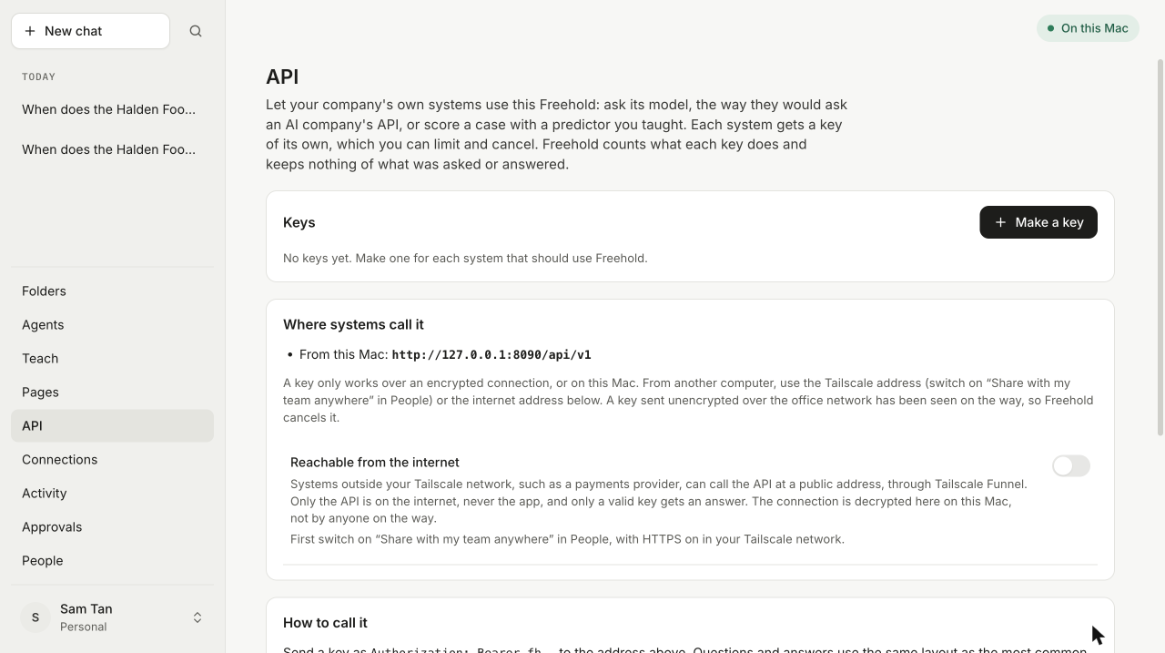
Make a key
- Click API on the left.
- Click Make a key.
- Under What it is for, name the system that will use it, for example "Payments service".
- Under What it may use, tick the model, a predictor, or both.
- Set its limits: Requests a minute and Tokens a day (a token is roughly part of a word). The starting values suit most systems.
- Click Make the key. Copy the key straight away and put it in that system's settings. It starts with fh_.
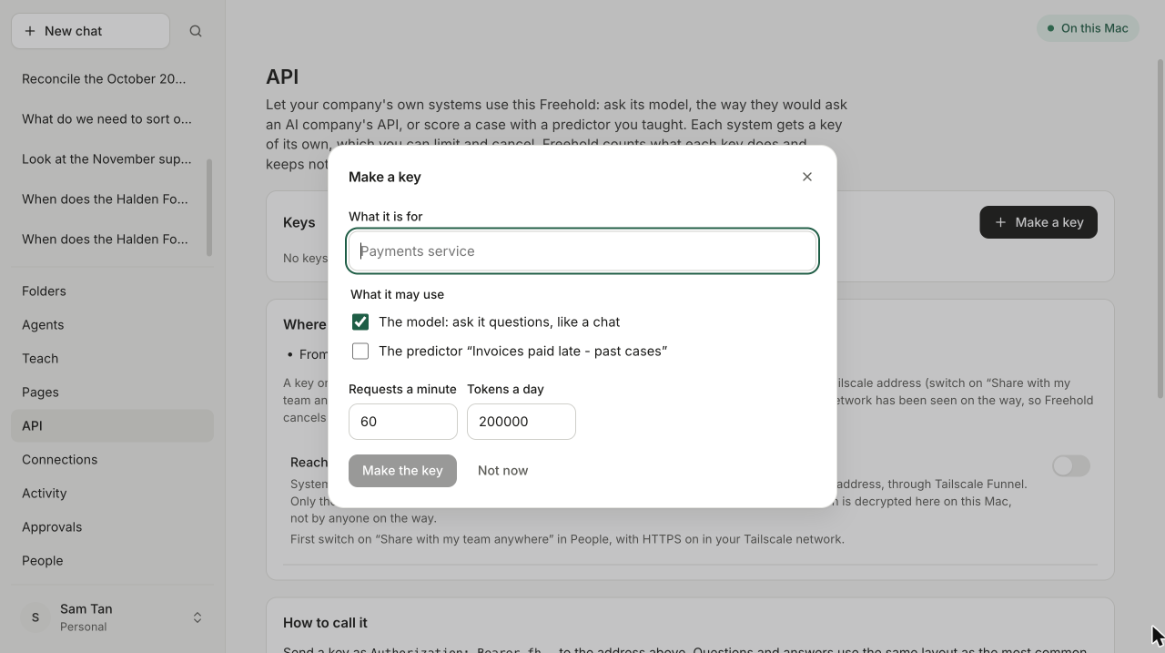
Make one key per system, so you can limit or cancel each on its own. To cancel a key, open it on the API screen and cancel it: it stops working at once.
Where systems call it
| From | Address |
|---|---|
| This Mac | http://127.0.0.1:8080/api/v1 (the port may differ: the API screen shows yours) |
| Your Tailscale network | Freehold's Tailscale address, after you set up Tailscale |
| The internet | A public address through Tailscale Funnel (below) |
A key sent unencrypted from another computer, for example over the office network, has been seen on the way. Freehold cancels it, and you have to make a new one. Use the Tailscale address or the internet address instead.
Reach it from the internet
Some systems outside your network, such as a payments provider, need a public address. Freehold can offer one through Tailscale's Funnel. Only the API is on the internet, never the app, and only a valid key gets an answer. The connection is decrypted on your Mac, not by anyone on the way.
- Set up Share with your team anywhere, with HTTPS switched on.
- In Tailscale's admin console, open Access controls. Under Funnel, choose Add Funnel to policy and save. (Freehold tells you if this is missing.)
- In Freehold, on the API screen, switch on Reachable from the internet.
- Freehold shows the public address, ending in :8443. Give it, with a key, to the system that needs it.
How to call it
Send the key in the request as Authorization: Bearer fh_…. The API screen has ready-to-copy examples for curl, Python, JavaScript and tools made for OpenAI. For example:
curl http://127.0.0.1:8080/api/v1/chat/completions \
  -H "Authorization: Bearer $FREEHOLD_KEY" \
  -H "Content-Type: application/json" \
  -d '{"model": "default", "messages": [{"role": "user", "content": "Summarise our refund rule in one line."}]}'
The Answers and errors part of the API screen lists every error, with what it means.
The API answers only while your Mac is on and online, with Freehold open. Freehold writes one answer at a time, so calls wait their turn.
Does something here not match what you see? Tell us, and say which page.