All help pages
Back up Freehold
Make an encrypted copy of everything in Freehold, so you can get it all back if your Mac breaks or is lost.
A backup is one encrypted file holding everything in Freehold: chats, folders' indexes, agents, settings and people. If your Mac fails, a backup and its key bring everything back on another Mac.
Set up backups
- Click your name in the bottom-left corner, then Settings, then Backups.
- Under 1. The backup key, click Make the backup key…. Save the key somewhere safe that is not this Mac, the same way as your recovery code.
- Under 2. Where backups go, type the location of a folder on another drive, for example an external disk, and click Use this folder.
- Tick Make a backup by itself every day.
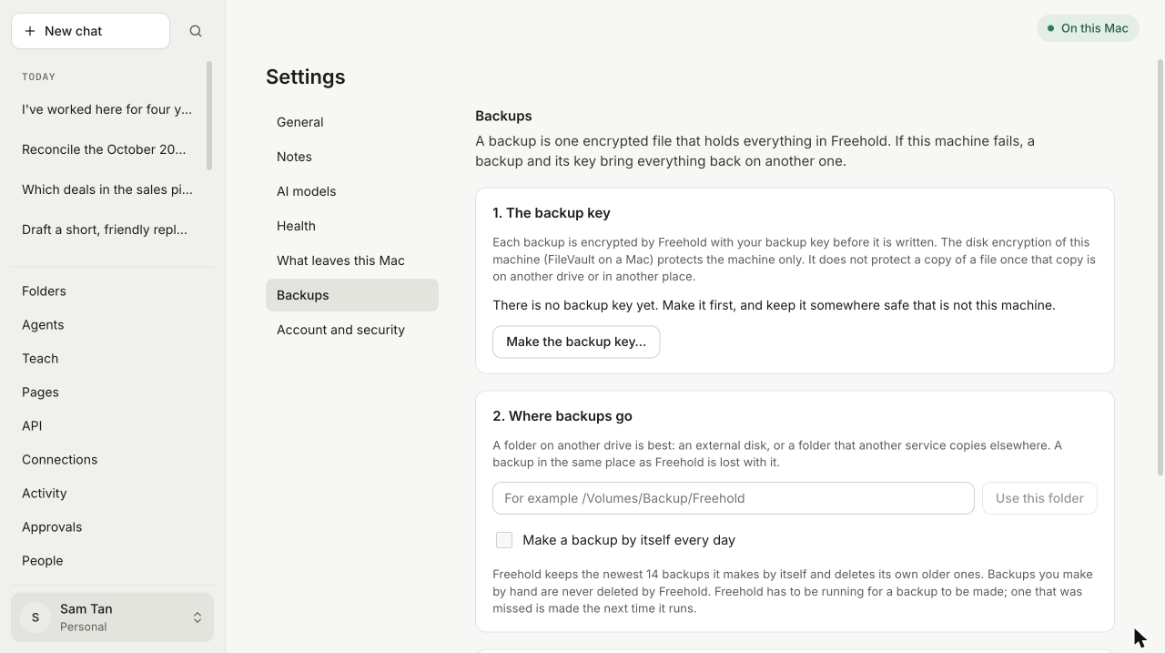
Freehold encrypts each backup with your backup key before writing it. Nobody, including us, can open a backup without that key. Keep it apart from the backups and away from this Mac.
How many backups are kept
Freehold keeps the newest 14 backups it makes by itself, and deletes its own older ones. Backups you make by hand are never deleted by Freehold. Freehold has to be running for a backup to be made: a backup that was missed is made the next time it runs.
Why another drive?
A backup on the same Mac is lost with it. An external disk, or a folder that another service copies elsewhere, keeps working when the Mac doesn't.
FileVault encrypts your Mac's disk. It doesn't protect a copy of a file once that copy is on another drive. That's why Freehold encrypts backups itself.
Bring everything back from a backup
On a new Mac, install Freehold. On the first screen, instead of creating a workspace, click Restore from a backup instead. Choose the backup file and type the backup key.
Does something here not match what you see? Tell us, and say which page.