All help pages
Invite your team
Let colleagues use your Freehold. Everyone gets a private workspace nobody else can open, and you can share folders and agents through shared workspaces.
Freehold can be used by up to 50 people. It runs on your Mac, so colleagues reach it over your office network, or from anywhere through Tailscale.
Everyone has a private workspace
Each person has a Personal workspace. Nobody else can open it, not even an owner. Their chats stay their own.
To work together, make a shared workspace: it has its own folders, agents and notes, which everyone in it can use. Each person's chats in it still stay their own.
Invite someone
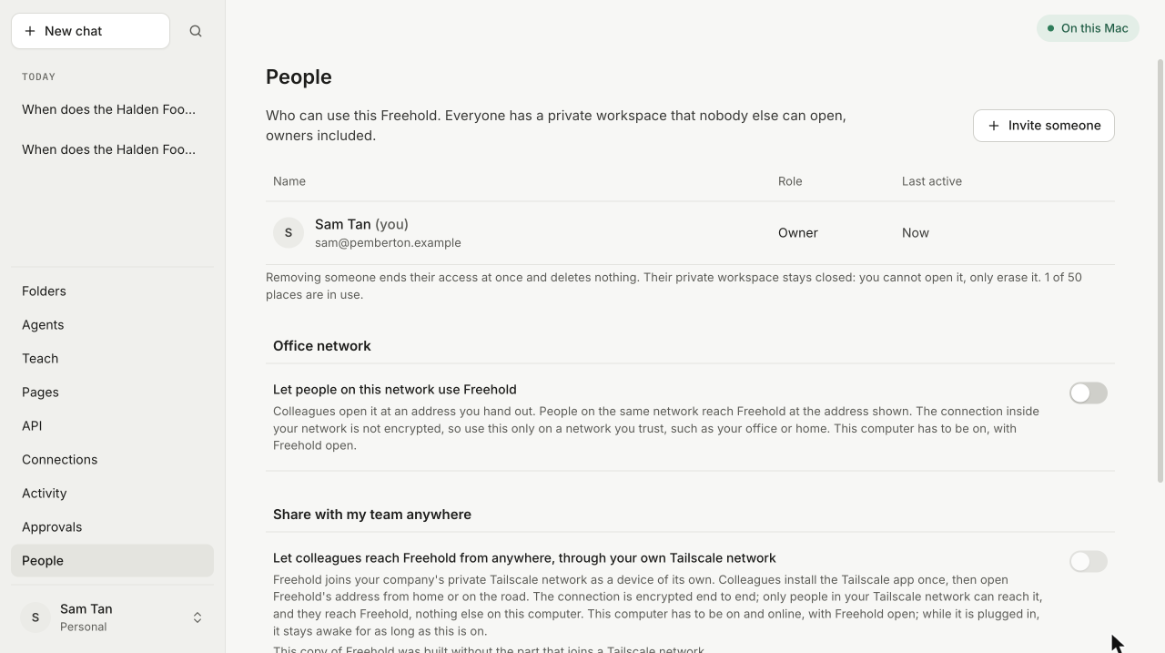
- Click People on the left.
- Click Invite someone.
- Type their email address. If you have shared workspaces, tick the ones they can open from the start.
- Click Make an invitation link.
- Copy the link and send it to them yourself, for example by email or chat. Freehold sends no email.
- They open the link, choose their password, and save their own recovery code.
Everyone you invite joins as a member, with a private workspace of their own. An invitation never makes someone an owner.
An invitation link only works if your colleague can reach your Freehold. In the office, turn on office network sharing (below). From anywhere else, set up Tailscale first. If neither is on, Freehold tells you so when it makes the link.
Roles
| Where | Role | What they can do |
|---|---|---|
| This Freehold | Owner | Everything, including inviting and removing people, and settings |
| This Freehold | Member | Use their own workspace, and the shared workspaces they're in |
| A shared workspace | Manager | Add and remove people, add documents, publish agents and approve workspace notes |
| A shared workspace | Member | Use what is in the workspace |
To make someone an owner, click the … next to them in People and choose Make an owner. You'll be asked for your password. Have at least two owners, so one can help the other back in.
An owner can click the … next to them and choose Make a password reset link. Send them the link. They are told that their password was reset.
Share on your office network
- In People, under Office network, switch on Let people on this network use Freehold.
- Quit Freehold and open it again: the change takes effect the next time Freehold starts.
- Freehold shows the address colleagues should open, made of your Mac's name and the port, for example http://sams-macbook.local:8080. Give them that address with their invitation.
The connection inside your office network is not encrypted. Use this only on a network you trust, such as your office or home, never on public Wi-Fi. For anything else, use Tailscale, which is encrypted.
This computer has to be on, with Freehold open, for colleagues to use it.
Remove someone
In People, open the person and remove them. Their access ends at once and nothing is deleted. Their private workspace stays closed: you can't open it, only erase it.
If they used Freehold through Tailscale, also remove them in Tailscale's admin console, under Users.
Several people at once
Freehold writes one answer at a time. When several people ask at once, the others wait in line and each sees their place. If 30 questions are already waiting, a new one is turned away with a message rather than joining a very long queue.
Does something here not match what you see? Tell us, and say which page.