All help pages
What leaves your Mac, and what never does
Your files, chats and answers stay on your Mac. Here is the short, complete list of times Freehold uses the internet, and where you can see each one.
What never leaves your Mac
- Your files and folders.
- Your questions, chats and answers.
- Everything agents make, unless you send it somewhere yourself or approve it.
- Your AI models, once downloaded.
Freehold sends no usage data and no crash reports to us or anyone else. We have no way to see your Freehold.
The only times Freehold uses the internet
Each one happens only when you use the feature.
| When | Where it goes | What it receives |
|---|---|---|
| You download an AI model | Ollama's model library (registry.ollama.ai) | Your internet address and which model |
| You allow it to check for updates | GitHub, which holds Freehold's release files | Your internet address and your Freehold version |
| You connect another app, such as Gmail or Notion | That app | Your sign-in, and what you or your agents send it |
| You teach the model itself | Hugging Face and the Python Package Index | Your internet address, and what is being fetched |
| You turn on "Share with my team anywhere" | Tailscale, through your own Tailscale account | What Tailscale needs to connect your devices |
See it for yourself
- Click your name in the bottom-left corner, then Settings.
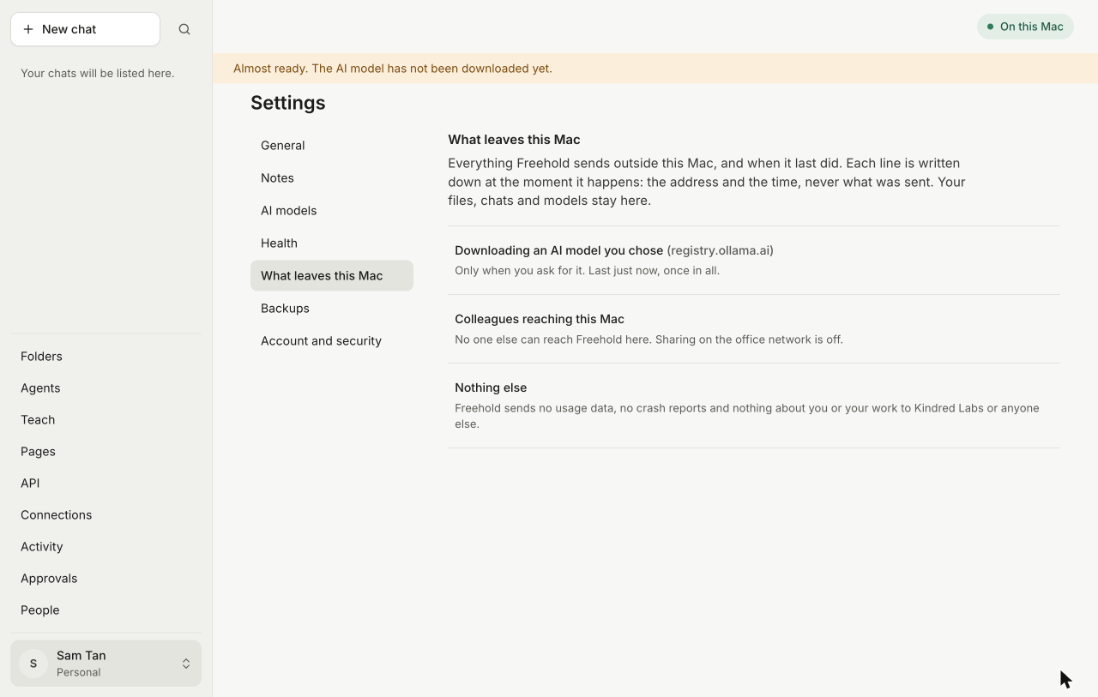
- Click What leaves this Mac.
Every outside address Freehold contacted is listed, with when it last did and how often. Only the address and the time are written down, never what was sent.
Works with Wi-Fi off
Once a model is downloaded, Freehold works with no internet at all. Try it: turn Wi-Fi off and ask a question.
Updates
The first time, Freehold asks the owner: Check now and then for a newer Freehold? Nothing is checked unless you say yes. A new version is installed only when you agree, and the version you have keeps working. You can switch checking off at any time in Settings, General.
Colleagues
If you turn on sharing with your team, other people can reach Freehold. What leaves this Mac shows that too, under Colleagues reaching this Mac. See Invite your team.
Health: a check-up of your Freehold
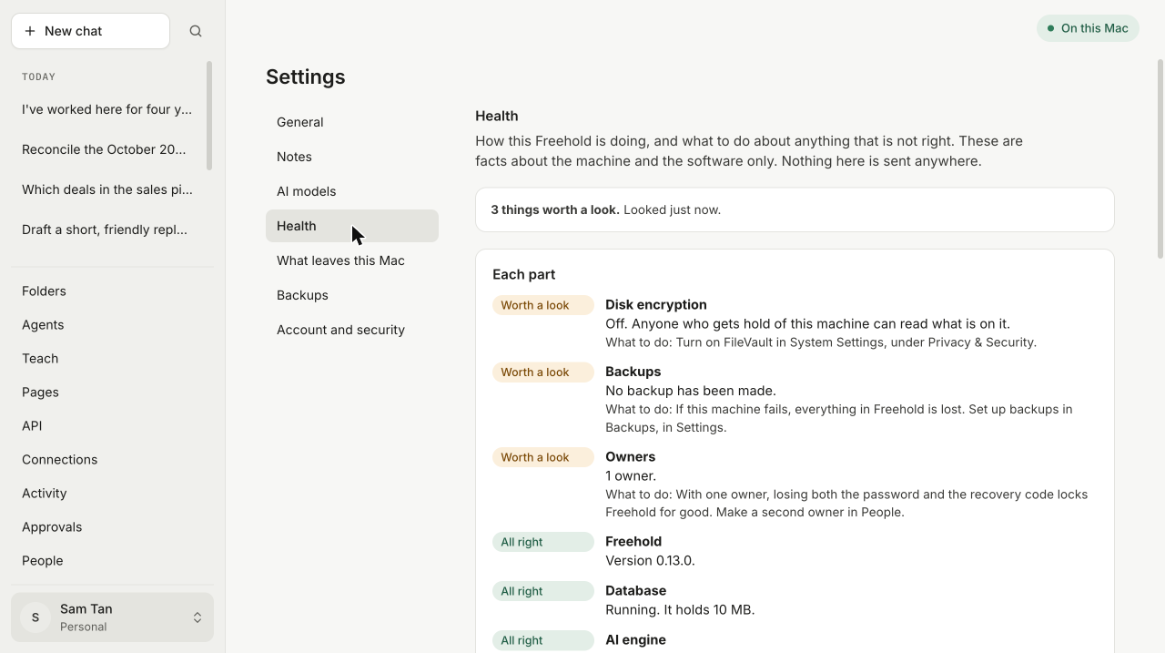
Settings, Health shows how your Freehold is doing, in plain words, and what to do about anything that isn't right. Nothing on it is sent anywhere.
More detail is in our privacy policy.
Does something here not match what you see? Tell us, and say which page.