All help pages
Share Freehold with your team anywhere, using Tailscale
Let colleagues use your Freehold from home or on the road, safely, through a private network that belongs to your company. Step by step, from creating the network to a colleague's first question.
The idea, in plain words
Normally, nobody outside your office can reach your Mac. That's good. But it means a colleague working from home can't use your Freehold.
Tailscale solves this. It is a separate service that makes a private network for your company over the internet: like an office network, but your laptops and phones can be anywhere. Only devices you let in can join, and everything between them is encrypted.
When you switch on Share with my team anywhere, Freehold joins that private network as a device of its own, called freehold. Your colleagues install the Tailscale app once, then open Freehold's address in their browser, wherever they are. They reach Freehold and nothing else on your Mac.
- Tailscale is a separate company. The private network is in your own Tailscale account, not ours. We never see your network or what travels on it.
- Freehold adds nothing on top and never changes your Tailscale plan.
What it costs
| Tailscale plan | Price | Who it's for |
|---|---|---|
| Personal | Free | Personal, non-commercial use only. Up to 6 people |
| Standard | US$8 per person, per month | Businesses |
| Premium | US$18 per person, per month | Businesses that need more control |
These are Tailscale's prices as listed on tailscale.com/pricing in November 2026. Check that page before you decide: they can change.
Tailscale's free Personal plan is only for non-commercial use. If you sign up with a work email on your company's own domain, Tailscale starts a 14-day trial and then asks you to choose a plan.
Before you start
- Freehold must be open on your Mac, and the Mac must be on and online, for colleagues to reach it. While Share with my team anywhere is on and the Mac is plugged in, Freehold keeps it awake.
- Freehold answers one question at a time. With several people, others wait their turn.
Part 1: the owner sets it up (once)
- In Freehold, click People on the left.
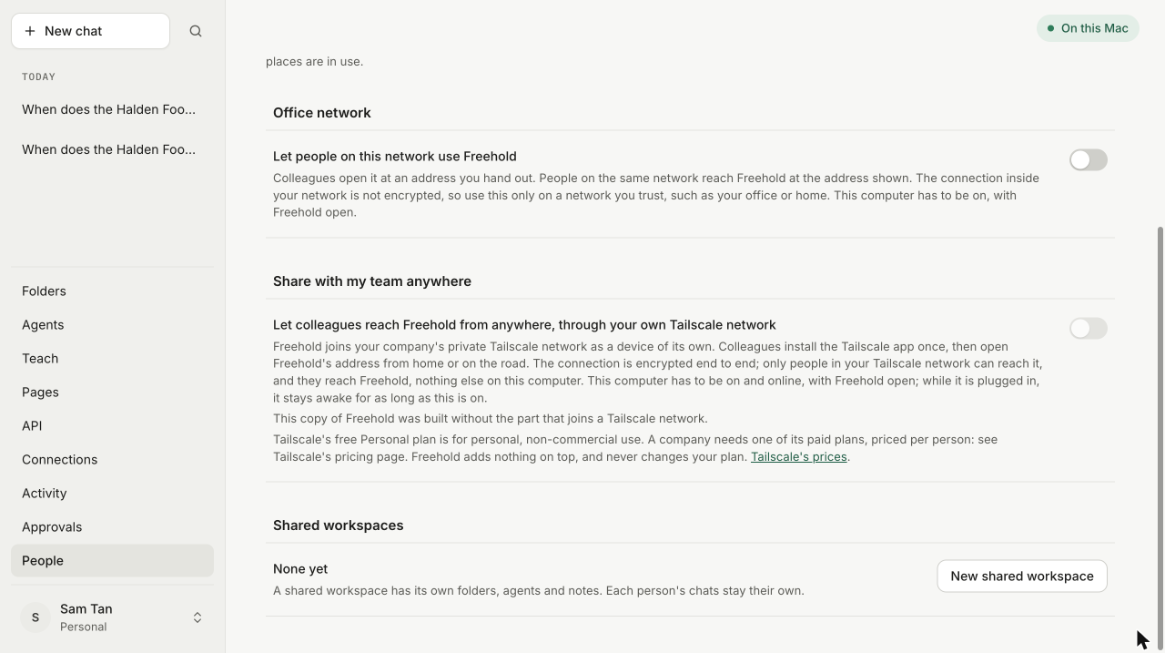
- Scroll to Share with my team anywhere and switch on Let colleagues reach Freehold from anywhere, through your own Tailscale network.
- Freehold shows a line: Sign in at Tailscale to add Freehold to your company's network (or create one there). Click open Tailscale's sign-in.
- Your browser opens Tailscale's website. Sign in with your work Google, Microsoft or Apple account, or your company's sign-in. If your company has no Tailscale network yet, this creates one, with you as its owner.
- If Tailscale asks you to connect the device called freehold, click to connect it.
- Go back to Freehold. After a few seconds, it shows Colleagues open: followed by Freehold's address. Copy it: your colleagues need it.
Get an address that starts with https (recommended)
If the address starts with http://, Freehold tells you that HTTPS is switched off in your Tailscale network. The connection is still encrypted by Tailscale, but an https:// address is better, and it is needed if you want API keys to work from the internet.
- Go to login.tailscale.com/admin and sign in.
- Click DNS at the top.
- Make sure MagicDNS is on.
- Under HTTPS Certificates, click Enable HTTPS and confirm.
Tailscale gets a security certificate for each device that asks for one. Certificates are listed in public logs, which include the device's name (here, freehold) and your network's name, such as tail1234.ts.net. Nothing else about your network is published. Don't give devices names that say something private.
Make sure colleagues reach Freehold and nothing else
When you start, Tailscale lets everyone in your network reach every device in it. Freehold gives you a rule that limits colleagues to Freehold alone.
- In Freehold, under Share with my team anywhere, click Make sure colleagues reach only Freehold.
- Click Copy under the rule it shows.
- In Tailscale's admin console, click Access controls.
- Replace the rule that allows everything with the rule you copied, and save.
If you're unsure, ask whoever looks after your computers to do this step. It only takes a minute, and it is worth doing.
Part 2: invite a colleague to your Tailscale network
- Go to login.tailscale.com/admin and click Users.
- Click Invite users (it may say Invite external users).
- Type your colleague's email address and send the invitation. Or choose Copy invite link and send them the link yourself.
If your network uses your company's email domain, colleagues with the same domain can also simply sign in to Tailscale and join.
Part 3: what your colleague does (once)
Send your colleague these steps, with Freehold's address:
- Install Tailscale. Go to tailscale.com/download on the computer or phone you'll use. It's free to install, for Mac, Windows, iPhone, iPad and Android.
- Join the network. Open the invitation from your email (or the link you were sent) and sign in. Then open the Tailscale app and sign in with the same account. The app shows Connected.
- Set your Freehold password. Open the Freehold invitation link the owner sent you, and choose a password. Keep the recovery code it shows. (The owner makes this link in Freehold, in People, Invite someone, once Part 1 is done. See Invite your team.)
- Open Freehold. Type Freehold's address, for example https://freehold.tail1234.ts.net, into your browser. Bookmark it.
From then on, they open the Tailscale app (it can start by itself) and the bookmark.
Tailscale recommends the version from its own website rather than the Mac App Store. Don't install both: having both can stop Tailscale from working.
When someone leaves
Do both, so their access ends everywhere:
- In Freehold, click People and remove them. Their Freehold sign-in ends at once.
- In Tailscale's admin console, click Users, find them, and remove them.
Turn it off
Switch off Let colleagues reach Freehold from anywhere in People. To take Freehold out of the network completely, click Remove Freehold from the Tailscale network, then delete the freehold device in Tailscale's admin console, under Machines.
If it doesn't work
| What you see | What to do |
|---|---|
| A colleague's browser says the site can't be reached | Check that their Tailscale app says Connected, that your Mac is on and online, and that Freehold is open |
| It worked yesterday, not today | Your Mac may be asleep or off, or Freehold closed. Open Freehold and check People |
| New people can't join after 14 days | Your Tailscale trial ended. Choose a plan in Tailscale's admin console |
| The address starts with http, not https | Turn on HTTPS, as described above |
Why Tailscale, and not just "open it to the internet"?
Putting Freehold on the open internet would let anyone in the world try to sign in. With Tailscale, only devices you invited can even find it, and the connection is encrypted from their device to your Mac. Your colleagues need one extra app, once, and that is the trade.
Does something here not match what you see? Tell us, and say which page.