All help pages
Password and recovery code
Check that your saved recovery code works, make a new one, change your password, and what to do if you forget it.
Freehold has no back door. We can't see your Freehold or reset your password, because nothing about it is ever sent to us. That keeps your work private, and it means you must keep the way back in safe.
Open your account settings
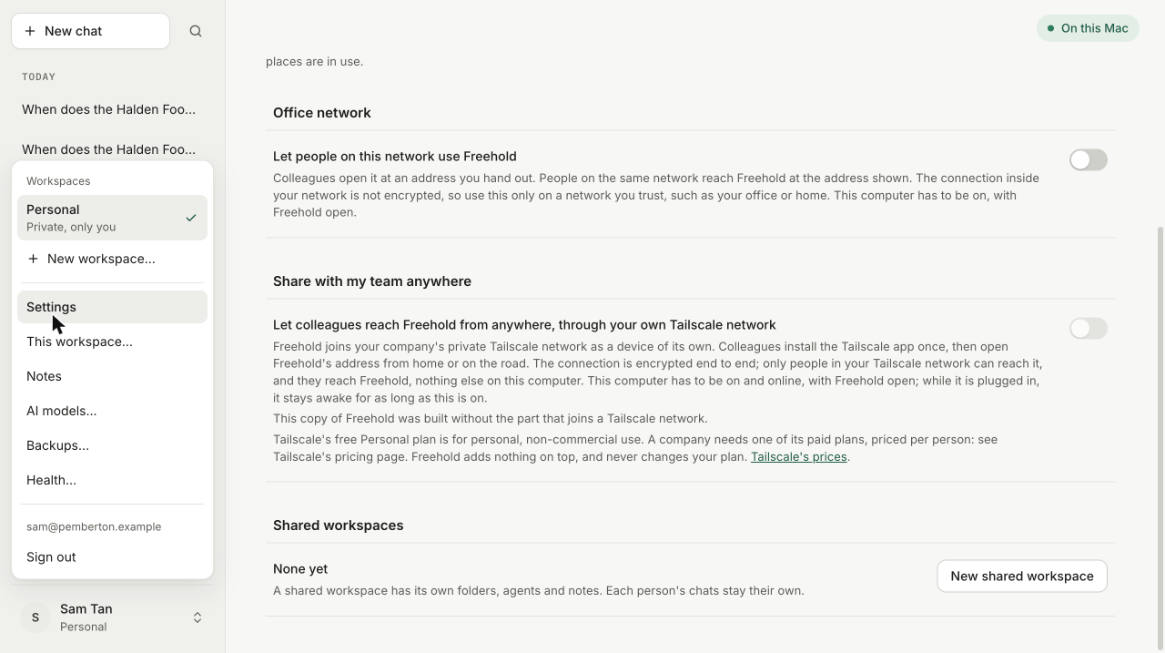
- Click your name in the bottom-left corner.
- Click Settings.
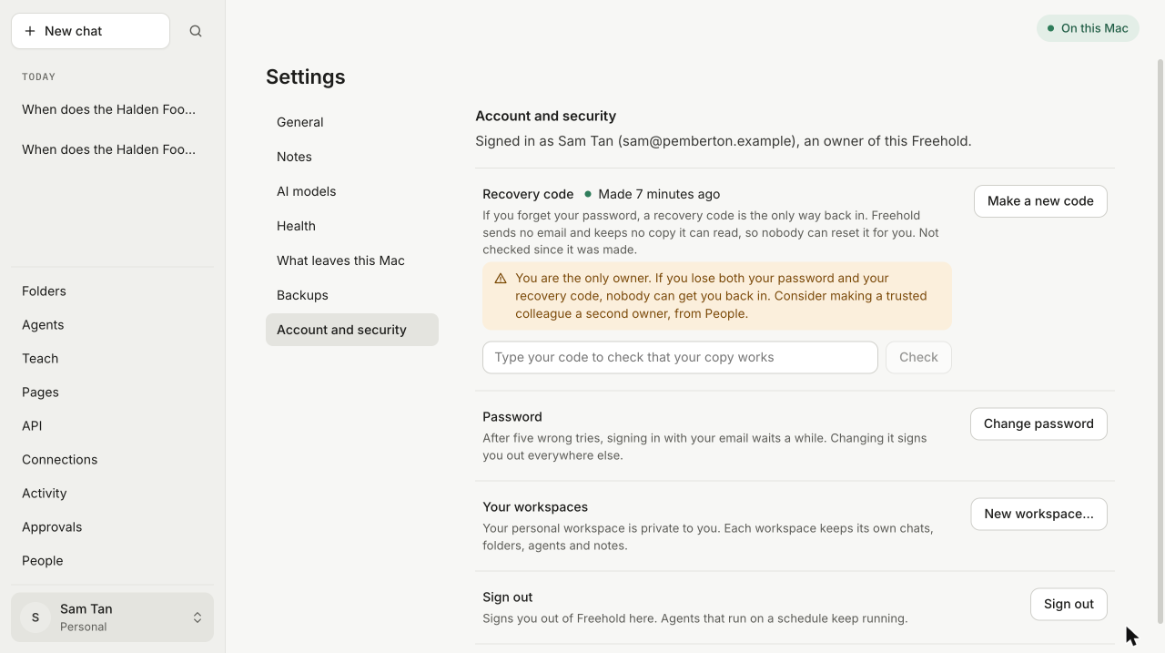
- Click Account and security.
Check that your recovery code works
Type the code you saved into Type your code to check that your copy works and click Check. Freehold tells you whether it is right. Do this once after setting up, so you know the copy you kept is correct.
Make a new recovery code
Click Make a new code if you lost the code or think someone else has seen it. The old code stops working. Save the new one the same way: in a password manager, or on paper somewhere safe.
Change your password
Click Change password. Changing it signs you out on every other computer you used Freehold on.
After five wrong tries, signing in with your email waits a while before you can try again. This stops someone guessing.
If you forget your password
- On the sign-in screen, choose to use your recovery code.
- Type the recovery code, then choose a new password.
- Freehold gives you a new recovery code. Save it: the old one has now been used.
If you lose both the password and the code
Not even us. This is the price of having no back door. To avoid it:
- Keep the recovery code somewhere other than this Mac.
- Make a trusted colleague a second owner, in People. An owner can let another person back in.
- Make backups, and keep the backup key safe.
Freehold warns you on this page and in Health if you are the only owner. With one owner, losing both the password and the code locks Freehold for good.
Does something here not match what you see? Tell us, and say which page.