All help pages
Connect your other apps
Let Freehold read from, and with your approval act in, apps such as Gmail, Notion, Slack or QuickBooks. You choose what each tool may do, one by one.
Each connection has been built and tested against a stand-in, but not yet with every real app. Try one with something that doesn't matter first.
What happens when you connect an app
What Freehold sends to a connected app, and what it asks it, leaves your Mac and goes to that app. Everything else stays on your Mac. A connection belongs to the person who made it: other people using your Freehold can't use it or see what it brings back.
Connect an app
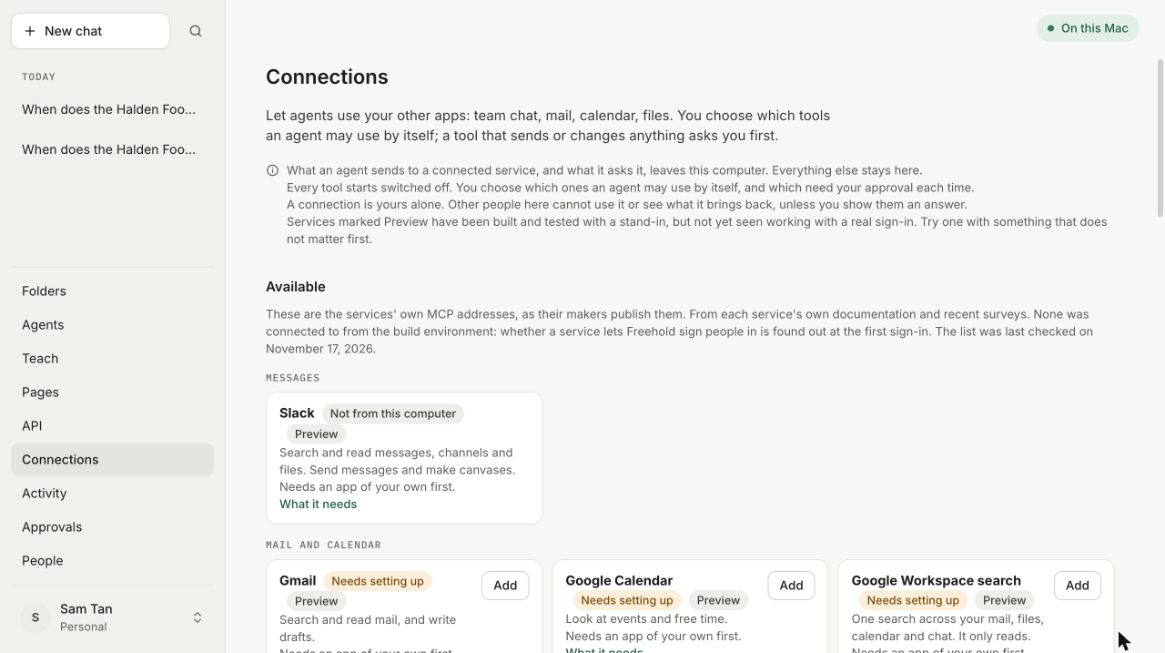
- Click Connections on the left.
- Find the app under Available and click Add.
- If it says Sign in at the service, a page from that app opens. Sign in there and allow Freehold.
- If it says Needs setting up, click What it needs first. Some apps, such as Gmail, ask you to create a small "app" of your own in their settings before anything can connect. The steps are shown in Freehold.
Choose what each tool may do
Each app comes with tools, for example search mail or write a draft. Every tool starts Off. For each one, choose:
| Setting | What it means | Use it for |
|---|---|---|
| Off | Freehold can't use it | Anything you don't need |
| Ask me first | Every use waits for your yes in Approvals | Anything that sends, changes, pays or deletes |
| By itself | Freehold uses it without asking | Looking things up only |
Some apps can move money (Stripe, PayPal, QuickBooks) or send messages (Slack). Keep those tools on Ask me first, and read each request before approving it. Actions taken in a connected app are yours.
Use a connected app in a chat
In the message box, switch on the Services button to let a chat use your connected apps. Tools that only read can then run by themselves; anything that sends or changes waits in Approvals.
The apps you can connect
| Kind | Apps |
|---|---|
| Messages | Slack |
| Mail and calendar | Gmail, Google Calendar, Google Workspace search |
| Files | Google Drive, Dropbox |
| Notes and projects | Notion, Asana, Trello, monday.com, ClickUp, Todoist, Airtable, Jira and Confluence, Linear |
| Customers | HubSpot, Pipedrive |
| Money | Stripe, PayPal, QuickBooks |
| Design | Canva |
| Meetings | Zoom, Calendly |
| Other | Zapier (a bridge to thousands of other apps), GitHub |
Gmail can search, read and write drafts. It never sends an email: you send the draft yourself, from Gmail.
Add your own
Any app or in-house system with an MCP address (a standard way for AI to use other software) can be added at the bottom of the page, under Add your own. Whoever runs it will tell you the address; it usually ends in /mcp. Only add apps you trust: their tools act with your sign-in.
Disconnect an app
Open the app on the Connections screen and remove it. The app may still list Freehold as connected in its own settings: remove it there too if you want.
Does something here not match what you see? Tell us, and say which page.